
When you activate Group Billing, you are able to view and sort your "Monthly Spend" report which consolidates the details of all transactions made by your team.
How-to View Your Monthly Spend Report
- Log in to Culinary Agents
- Click "Employer" on the upper right corner of the website
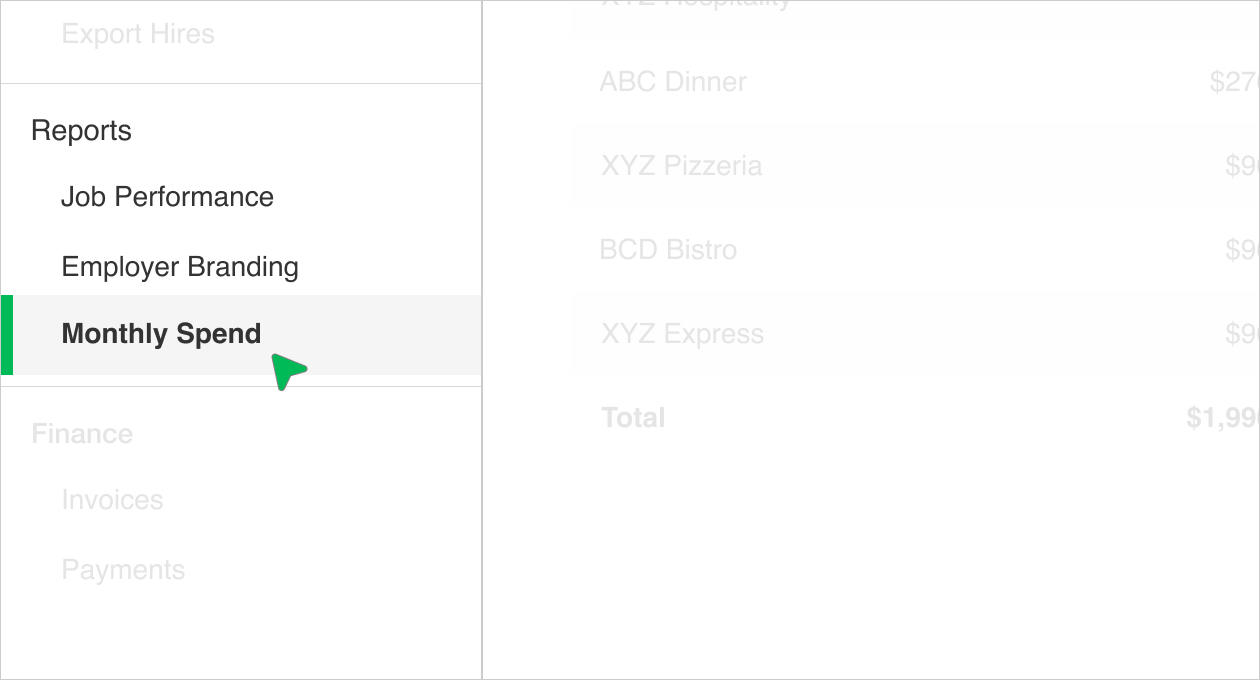
- Under "Reports," click “Monthly Spend” on the left navigation menu
How-to Filter Your Monthly Spend Report

- Select the corresponding Month from the drop down menu
- Select from the "Billed to" options (e.g., All, Group, Business)
How-to Sort Your Monthly Spend Report
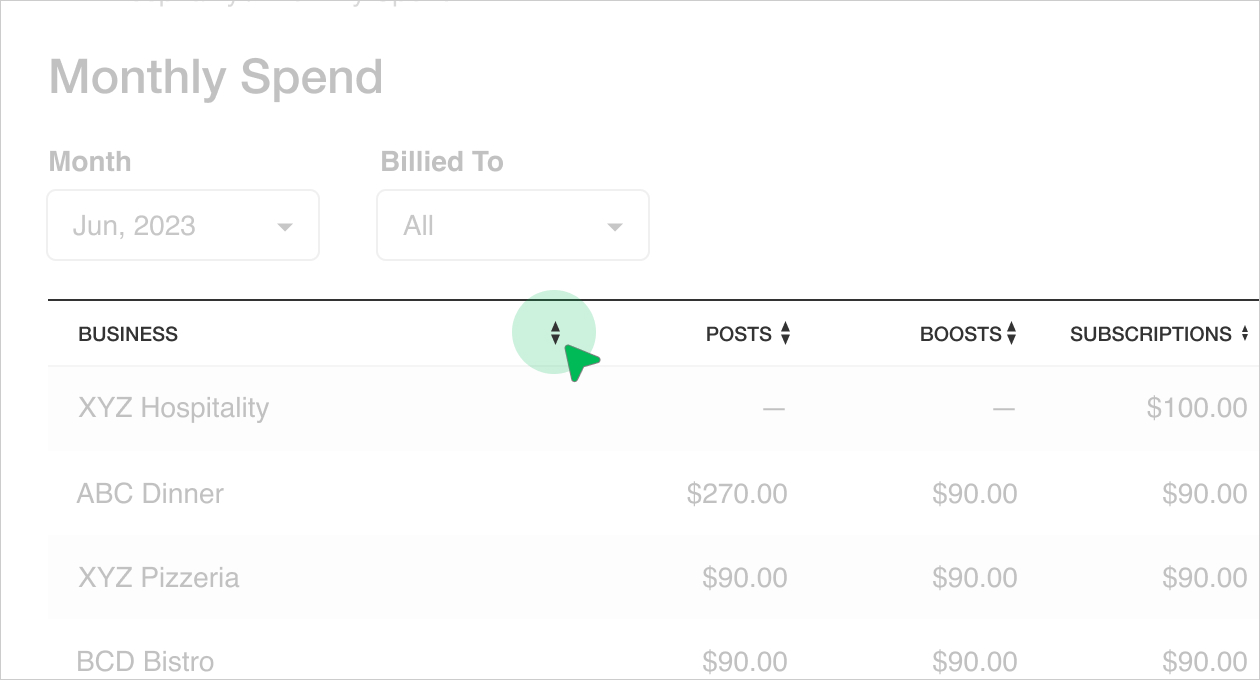
To sort your monthly transactions, click on the arrows to the right of each columns header.
If you have any questions, please message our Support Team.
Related Articles:


