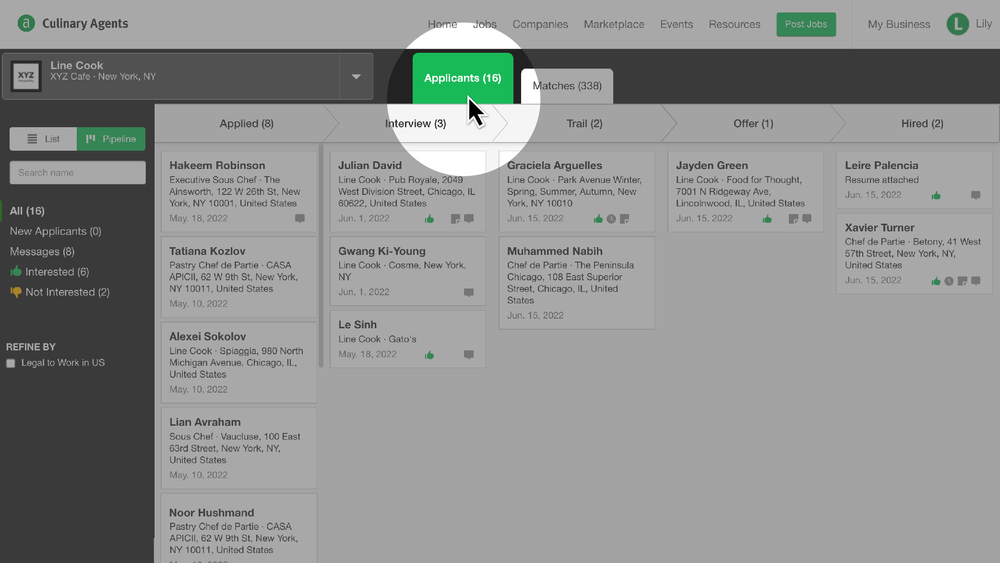
Effectively managing candidates is essential to your hiring process and building a strong team. The Candidate Dashboard centralizes applicant data and communication. It includes two main tabs — Applicants and Matches. This article focuses on utilizing the Applicants tab. For more information on Matches, click here.
Optimize Your Applicant Dashboard
To save yourself and your team time recruiting and ultimately hiring, we encourage you to customize your Applicant Dashboard based on your needs and preferences.
- In the List view, you are able to see specific details for the individual applicant.
- In the Pipeline view, you are able to see all of your applicants from a bird’s eye perspective along with which stage each is in, from “Applied” to “Hired”. In this view you can also easily drag and drop Applicants from one stage to another.
View Applicant Details
Our Applicant Summary feature provides an overview of the job seeker's application, sharing strengths and highlights, experience alignment, education, and certifications. While this AI-generated summary serves as a high-level, quick reference, the applicant’s full resume and cover letter provide the most comprehensive details.
-
Add internal notes
- Tag the applicant with a thumbs up, thumbs down or red flag
- Add an Assignee to the applicant (Subscription ATS Feature)
- Update the applicant’s status
- Directly message the applicant
- Send an interview request to the applicant (Subscription ATS Feature)
- Initiate a Background Check (Additional Fee)
- Send a Document Request to the applicant (Subscription ATS Feature)
Refine Applicant Results with Filters
To narrow your applicant results, click on any of the following filters on the left navigation bar:
- New Applicants
- Applicants your team has messaged
- Applicants your team has tagged with a Thumbs Up
- Applicants your team has tagged with a Thumbs Down
- Applicant Status (Pipeline Stage) Settings
- Applied
- Interview
- Trial
- Offer
- Hired
- Any custom status settings
You can also filter by the following options:
- Applicants based on their status in your Pipeline
- Applicants filtered by the Assignee from your team
- Profile filters including current location, work eligibility and profile source.
- Screening Questions
Identify Applicants with Icons
Our simple icons provide quick visual aids to help you identify those who your team has had communication with and/or have previously applied to jobs with your company. They are as follows:
- The "Message" icon indicates there is message correspondence with your team and the applicant.
- The "Clock" icon indicates the applicant has previously applied to jobs with your business.
- The "Sticky Note" icon indicates an internal note has been added by our team for the applicant. Adding an internal note is helpful for communicating with your team about an applicant. Applicants are not able to access these notes.
- The "Thumbs Up" icon indicates that your team has reviewed and is interested in the applicant for this job.
- The "Thumbs Down" icon indicates that your team has reviewed and is not interested in the applicant for this job.
- The "Red Flag" icon indicates that your team has added a note to the applicant to reference for the current application as well as on any future applications from the same individual.
In addition to these icons, new applicants are labeled with a green “new” which will appear until your team views the applicant for the first time from the dashboard.
Create Custom Message Templates
When using our platform to message applicants, creating templates ensures consistency in your team’s communication to applicants while also saving time. You will always have the option of sending a custom message, if preferred.
- Applicants will be notified that there is a message from your business.
- No personal information of the team member sending the message will be shared, unless it is included in the body of the message.
- You are able to actively message applicants up to 90 days after your job post expires.
Pro-tip: Keep all messaging with applicants on the platform so that your team has a central place to access if needed.
In summary, the features and functions of your Applicant Dashboard will facilitate your hiring process by allowing you to efficiently share information with your team while keeping applicant details and communication consolidated in one place.
Our team is here to help! Contact us for assistance.


