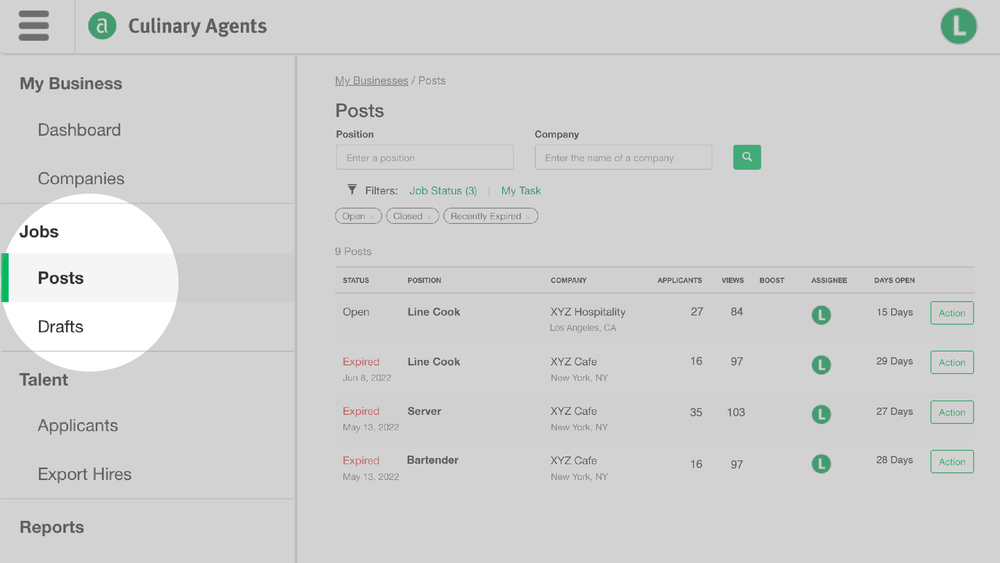
The “Jobs” section of "My Business" is designed to help you easily manage your job posts and ads, review application stats at-a-glance and access candidate data. If you have access to multiple business profiles and/or are an Admin for a Group, this section allows you to have an overview of all job activities related to your business profiles.
In the “Jobs” section, you can easily:
- Search jobs
- Access jobs
- Manage jobs
- Access candidate data
To access “Jobs” via “My Business”:
- Log into your Culinary Agents account
- Click "My Business" in the upper right corner of your screen
- Click either subsection of “Jobs” from the left navigation menu: “Posts” or “Drafts”
Posts vs. Drafts
- Posts include all jobs that have been published (e.g., Open, Closed, Recently Expired, Archived)
- Drafts include jobs that have not yet been published.
Search Jobs
To easily locate a Post or Draft, begin typing in the position and/or company name. You may also refine your search for Posts by filtering your results (e.g., Job Status, My Tasks).
Job Status
- Open: Jobs that are active and accepting applications
- Closed: Jobs that are active, but no longer visible to the public and not accepting applications
- Recently Expired: Jobs that have expired within the last 90 days
- Archived: Jobs that have expired beyond 90 days
My Tasks
- Assigned to me: Jobs in which you are the main point person
- Following: Jobs in which you receive updates when there are unread applicants
Action Shortcuts
For Posts: Click “Action” to the right of the corresponding Job Post to access the following drop down menu of shortcuts:
- View Post: to view Job Details
- Report: to view stats related to candidates and applications
- Edit: to make changes to jobs that are listed as “Open” or “Closed” (i.e., not expired)
- Repost: to easily create a new job post from an Expired job
- Close: to make a job no longer visible to the public and stop accepting applications
For Drafts: Click “Action” to the right of the Job Draft to access the following drop down menu of shortcuts:
- Review & Post: to access a draft and continue edit and/or post the job
- Delete: to remove
Pro-tips:
- If you are a Group Admin (for multiple businesses linked to group profiles), the overview from the main page is organized based on the Group. To switch between groups and/or business profiles that are linked to different groups or not linked to groups, first select from the drop down menu in the "Group Admin" section on the left.
- Access to specific details is based on the access level per team member for each business profile. For more details, click here.
- For a directory of tutorials for utilizing Culinary Agents for your business, click here.


